Time and drives, tracked from your phone
Run up to five timers at once, record a drive with its route on the map, and watch both from the Lock Screen. Each one becomes time or mileage you bill exactly once.
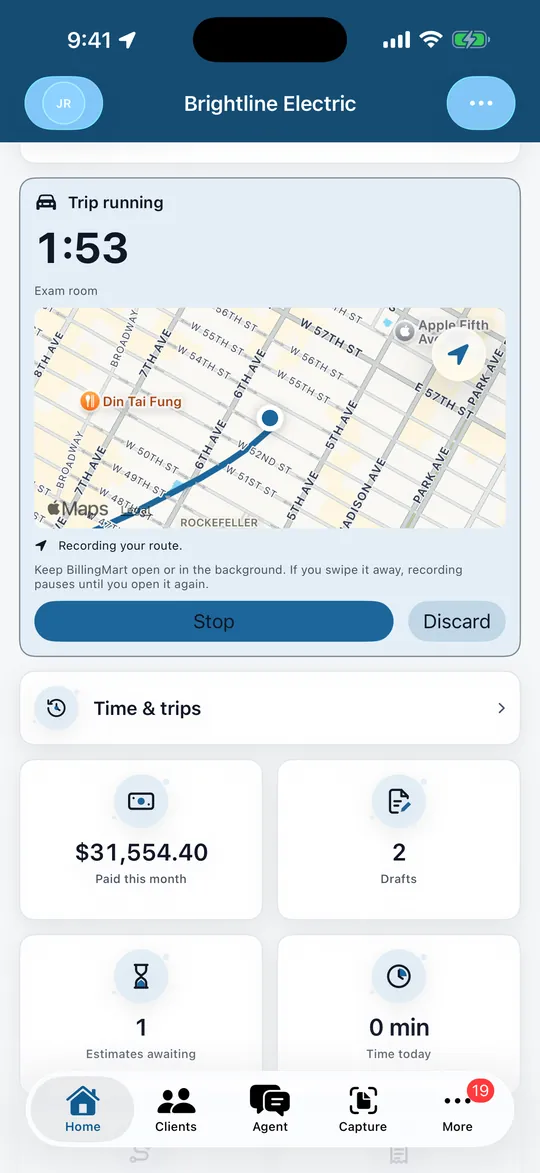
Up to five timers, running side by side
Start a timer for a job and keep working. Start another and the first keeps running; each stops on its own and becomes its own time entry.
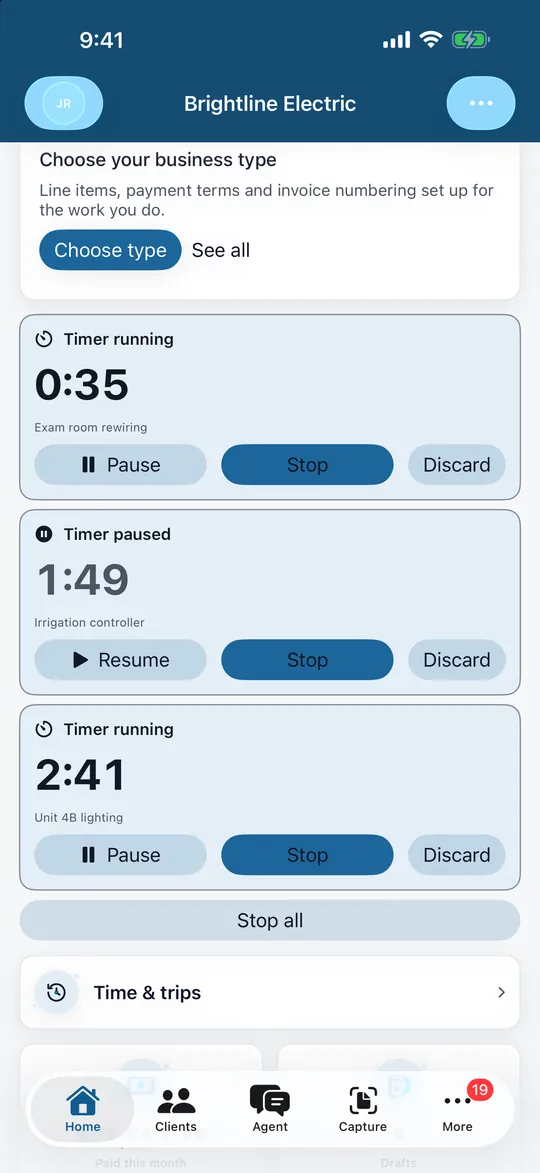
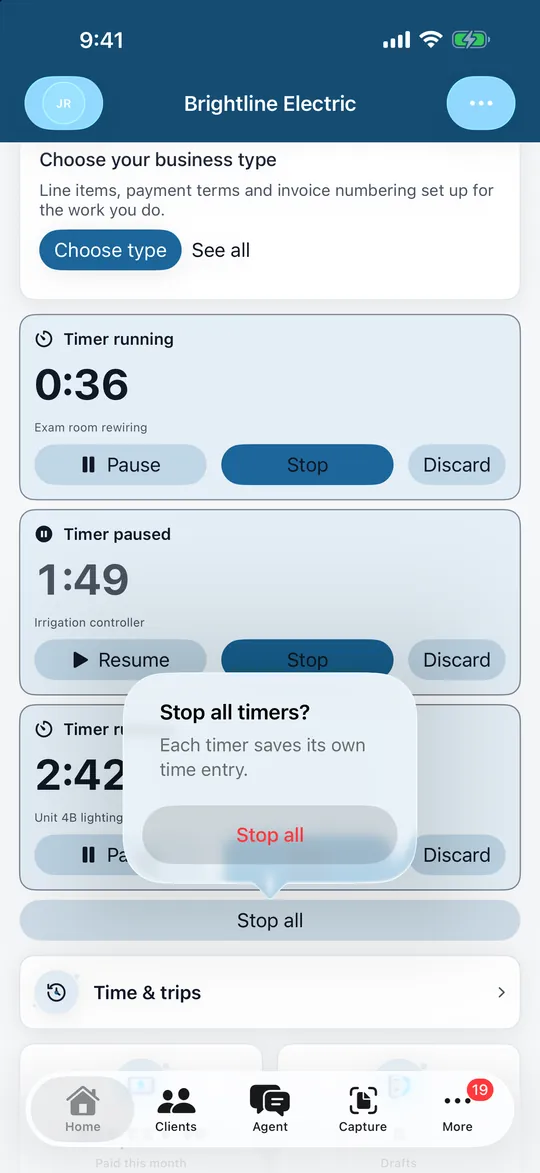
- Pause and resume any timer. Paused time is not counted.
- Starting a timer while another runs asks first, and lists the ones already running.
- Stop all at the end of the day closes every timer after one confirmation, each with its own entry.
- The minutes come from our server clock when you stop, not from the phone, so a phone with the wrong time cannot change them.
Drives, with the route on the map
The phone records where a trip goes while it runs. When you stop, the route is drawn on Apple Maps and our server works out the distance from the recorded points.
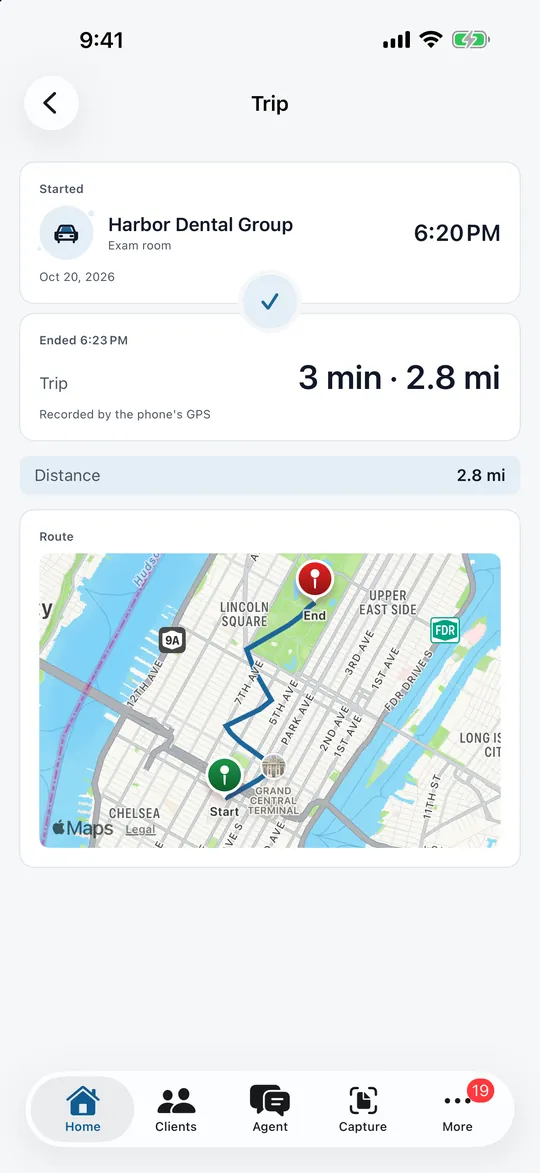
- A timer and a trip can run together.
- Readings that cannot be right are filtered out on our server before the distance is counted.
- The distance is a convenience; check it before relying on it.
- Add photos at the start and the end if you want them. They are optional.
On the Lock Screen
A running trip or timer shows on the Lock Screen and in the Dynamic Island, so you can see it without opening the app.
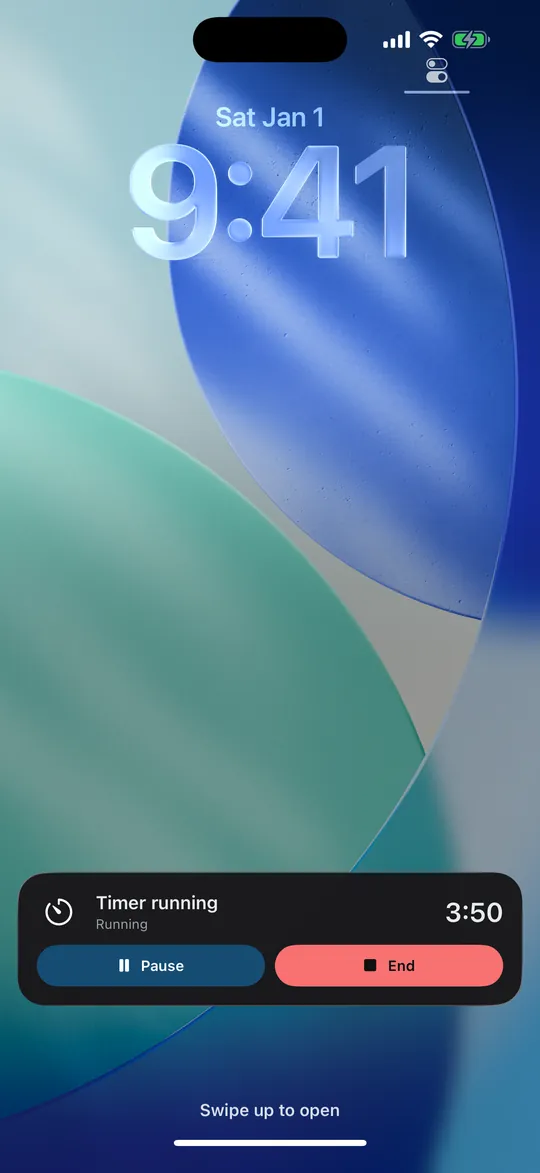
- Pause, resume or end it from there.
- Your newest timer and any trip get a Live Activity; the rest are in the app.
- The counter keeps running if you leave the app.
A forgotten timer is not a surprise
A timer left running reminds you, and we never stop one for you.
- A reminder after 8 hours of running time, and another after 12.
- After 24 hours the timer is paused, and we tell you. Resume it or stop it when you are back.
- Paused time is never counted, and a timer you resume is not paused again.
- You choose how reminders reach you in your notification settings.
From the field to the invoice
A stopped timer or trip becomes an ordinary unbilled time or mileage record. From there it rebills like anything you typed in: once.
- Each record is marked billed in the same step that puts it on a draft, so nothing is billed twice.
- A tracked record cannot be edited. If you forgot to stop, you can shorten it from the console; the original is kept.
- Time and mileage appear in the console with a Tracked label, and the timers you left running on your phone can be paused or stopped there.
Location, only while a trip runs
The app uses your location to record a trip while the trip is running and for nothing else.
- No trip running, no location recorded.
- The phone shows that a trip is recording, and ending it stops the recording.
- The recorded points are deleted 90 days after the trip ends; the route drawn on the map stays with the trip.
- Photos are optional, and a discarded session removes its points and photos.
Good to know
What the distance is, and is not
It comes from the phone’s location readings, which can be off in tunnels, between tall buildings and with a weak signal. It is a convenience; check it before relying on it.
Expenses and receipts
Log expenses with their receipts, and bill time, mileage and expenses onto an invoice together.
Track the work, bill it once
Timers and drives are part of the iPhone app.